What this tutorial does
This walkthrough helps you set up the Ko-fi Shop side of your Spawn Overhaul website. It shows where to create products, how to enable quantities, how to copy product URLs, and where to paste them in config.js.
Before you begin
- Have your Spawn Overhaul website folder extracted.
- Have a Ko-fi account signed in.
- Plan these three products: 1 Xenon N, 1 Xenon K, and 1 Kha'ak Ravager.
- Use numeric prices in
config.js, for example0.99and not0.99$.
Website ship images included
The storefront now includes a picture area for each ship card.
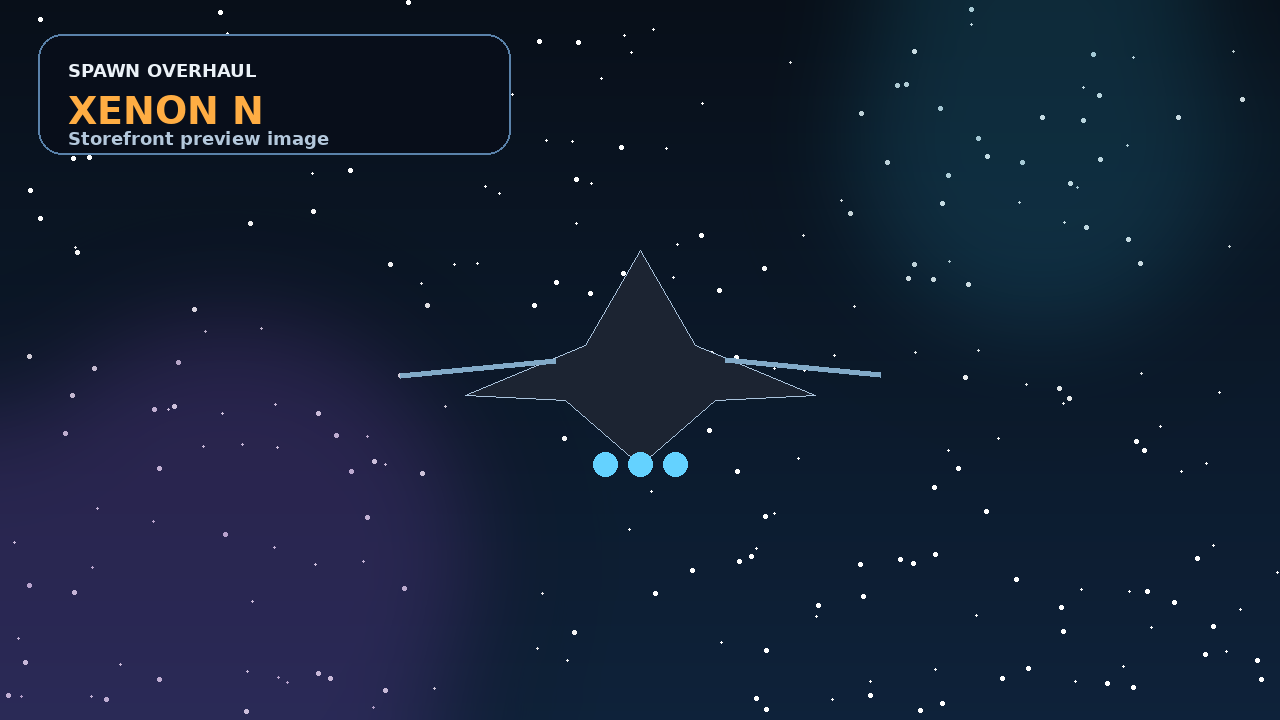
Xenon N
Suggested price: $0.99 each
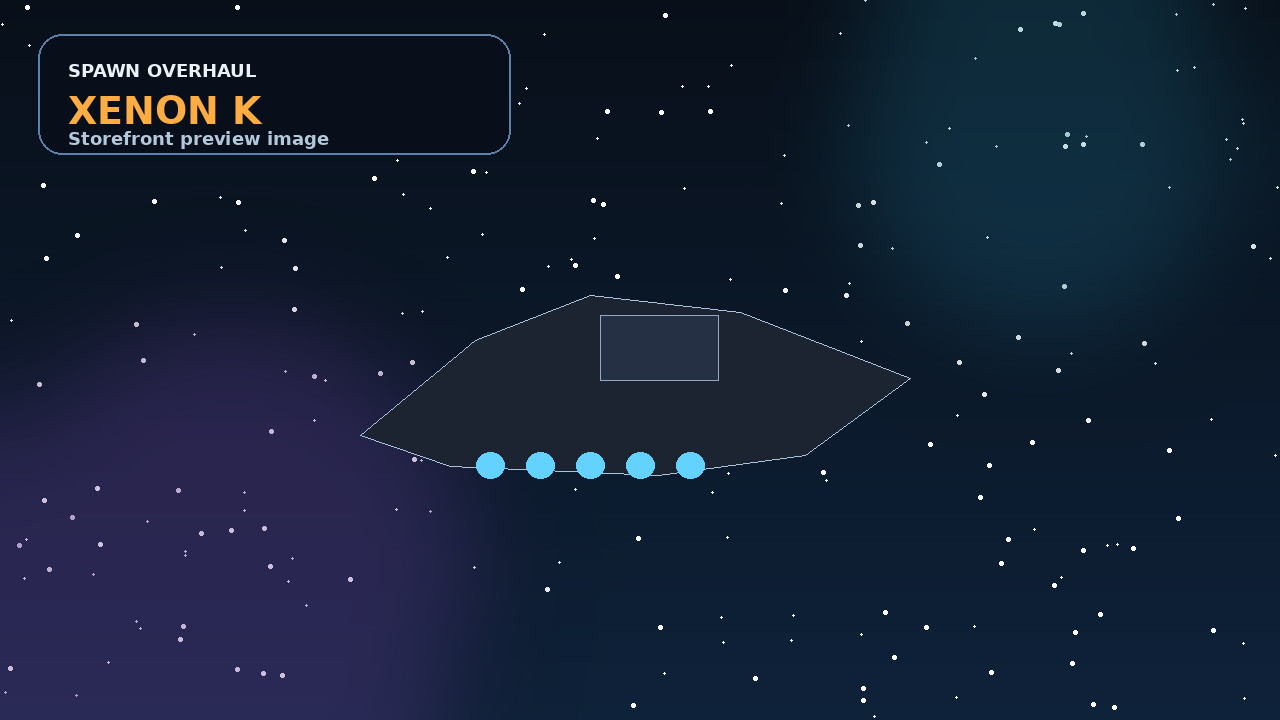
Xenon K
Suggested price: $9.99 each

Kha'ak Ravager
Suggested price: $14.99 each
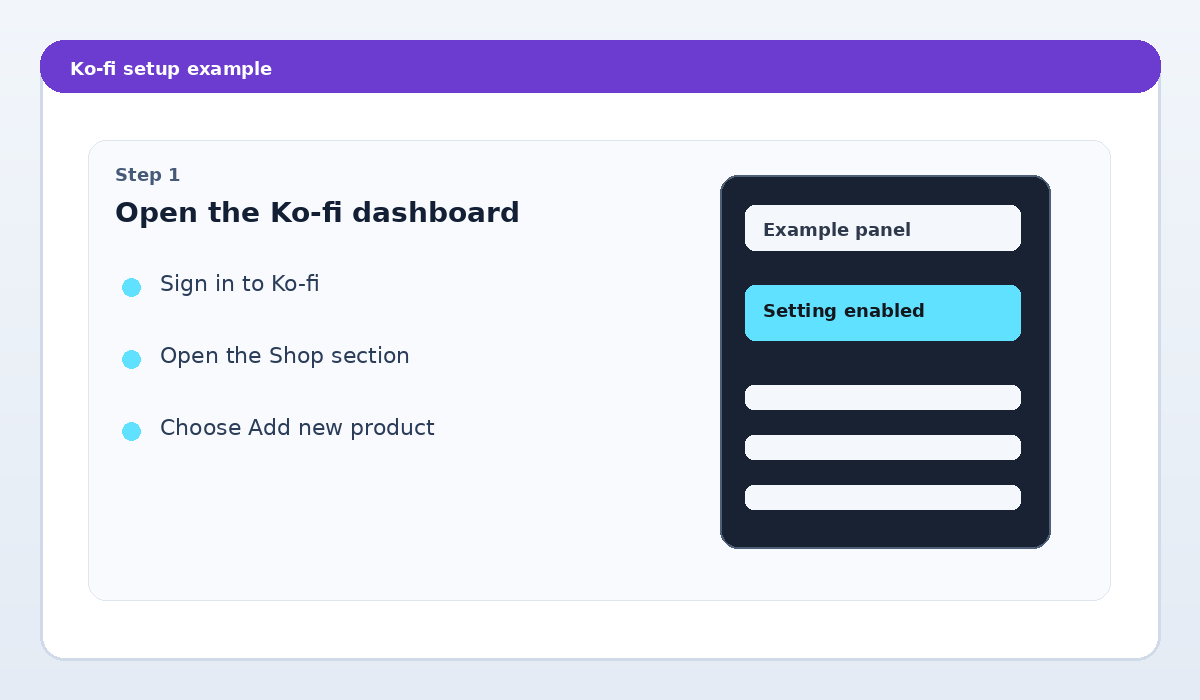
Step 1 — Open your Ko-fi Shop dashboard
- Sign in to Ko-fi.
- Open your page/dashboard.
- Go to the Shop section.
- Choose Add new product or the closest equivalent button.
Step 2 — Create one product per ship type
- Create Spawn 1 Xenon N.
- Set the price to $0.99.
- Create Spawn 1 Xenon K and set its price.
- Create Spawn 1 Kha'ak Ravager and set its price.
- Add a short description so you remember which product maps to which ship.
Even though the website lets people choose quantity, each Ko-fi product should still represent one unit of that ship.
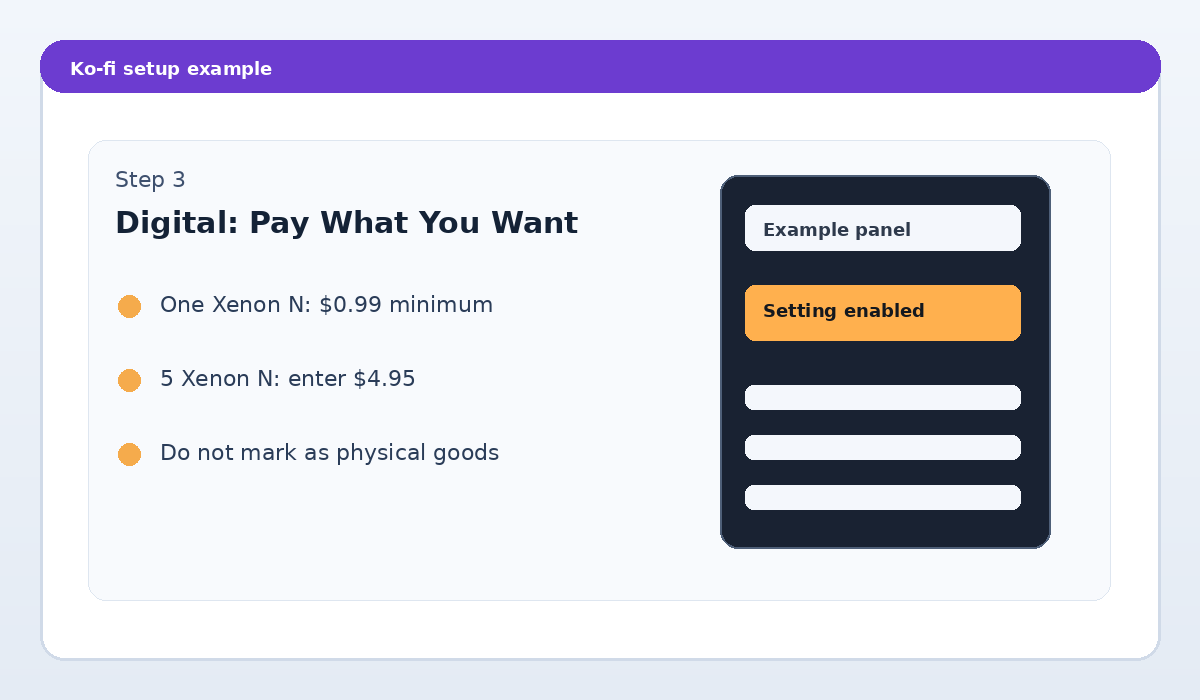
Step 3 — Enable Pay What You Want
- Keep each ship purchase as a digital listing; don't pretend it is a physical item.
- Find Pay What You Want and enable it. The minimum should be the price of ONE ship ($0.99 for Xenon N).
- Save. The buyer can then manually type the quantity-based TOTAL shown on your website.
Step 4 — Copy each exact Ko-fi product link
- Open each product's public page.
- Copy the full URL from the browser address bar.
- It should be the individual product link, not only your general shop home page.
You need one exact URL for Xenon N, one for Xenon K, and one for Kha'ak Ravager.
Step 5 — Paste the links into config.js
- Open
website/Edit_Shop_Links.htmlin your browser. - Find the matching ship field.
- Paste the product URL into the Ko-fi link text box and confirm its price.
- Click Download updated config.js, then replace the old
website/config.jswith that downloaded file. - Leave
checkoutMode: 'pay_what_you_want'in the config. - Refresh
index.htmlin your browser.
Use the editor instead of typing into JavaScript: it keeps quote marks and commas correct.
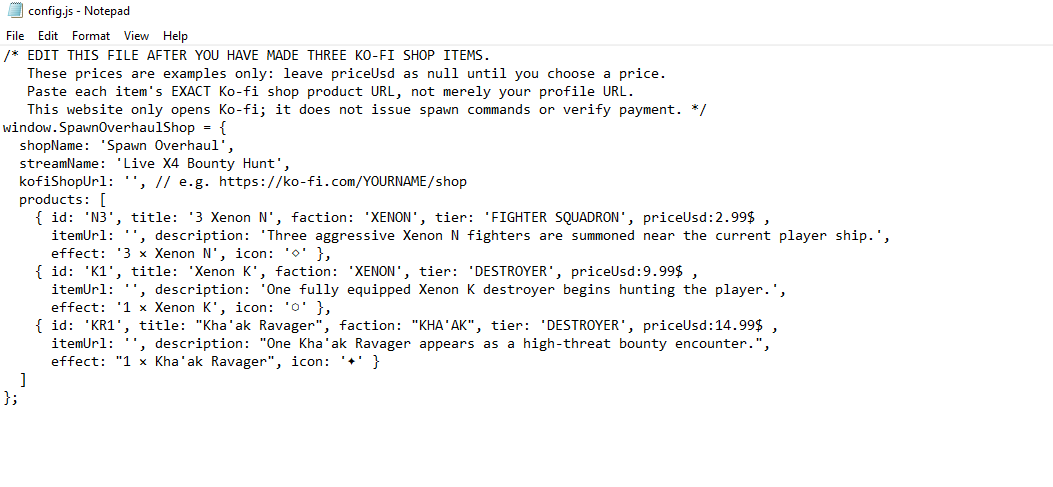
Example config.js snippet
{
  id: 'N1',
  title: 'Xenon N',
  priceUsd: 0.99,
  itemUrl: 'https://ko-fi.com/s/YOUR_PRODUCT_CODE',
  image: 'assets/xenon_n.png'
}
Common mistakes
- Using a dollar sign in
priceUsd→ wrong:priceUsd: 0.99$. - Pasting your shop home page instead of the exact item URL.
- Forgetting to turn on Pay What You Want for a digital listing that has no quantity control.
- Assuming tips above the minimum automatically mean additional ships. The future webhook needs explicit exact-total validation and handling of extras, taxes, and discounts.
- Expecting payments to spawn ships right now — that part comes in the later webhook step.
Exact-total examples
Xenon N × 5 → $4.95. Xenon K × 2 → $19.98. Kha'ak Ravager × 3 → $44.97. These examples are only checkout instructions, not confirmed game events.
Ko-fi's webhook later needs to verify that a payment is for exactly one recognized digital product, in USD, for the expected total, and that its transaction ID has not already spawned. Extra tips, taxes or discounts can make the amount ambiguous; those orders should require manual review.
What happens next
After your products and URLs are working, the next stage is connecting verified Ko-fi webhook payments to the X4 queue. That future step will read the real purchased quantity from Ko-fi and then send the correct number of ships to Spawn Overhaul.
Keep this tutorial file. You can open it anytime without replacing the main storefront page.